
Designated relevant employers (DREs) are required to select targets in the WGEA portal when lodging a Gender Equality Report. Each employer must select 3 targets.
Target selection is completed in the Targets Program within the Employer Portal.
For information about Gender Equality Targets, refer to Gender Equality Targets overview.
Before you start
You will need to be logged into the Employer Portal as the reporting contact for your organisation. For access support information see the WGEA Employer Portal access page.
If your organisation is part of a corporate group, you need to select targets separately for each DRE in the group.
Please note:
You cannot lodge your Gender Equality Report until your targets have been submitted.
How to open the Targets Program
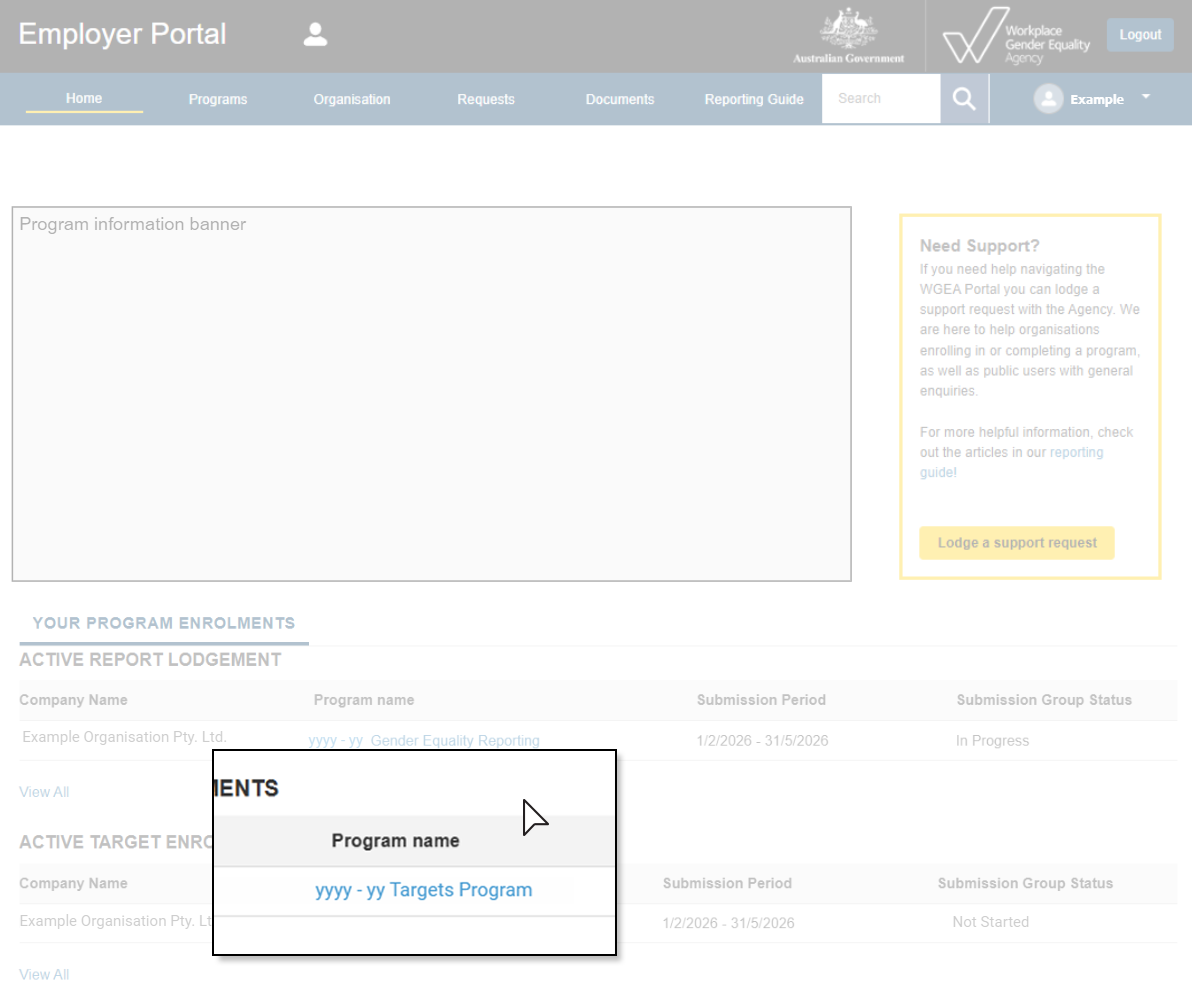
After logging in to the WGEA Employer Portal, you will be taken to the portal home page where you will select ‘2025-29 Targets Program’ under the ‘Active target enrolments’ section.
This will take you to the Targets Program page.
Confirm your organisation's details
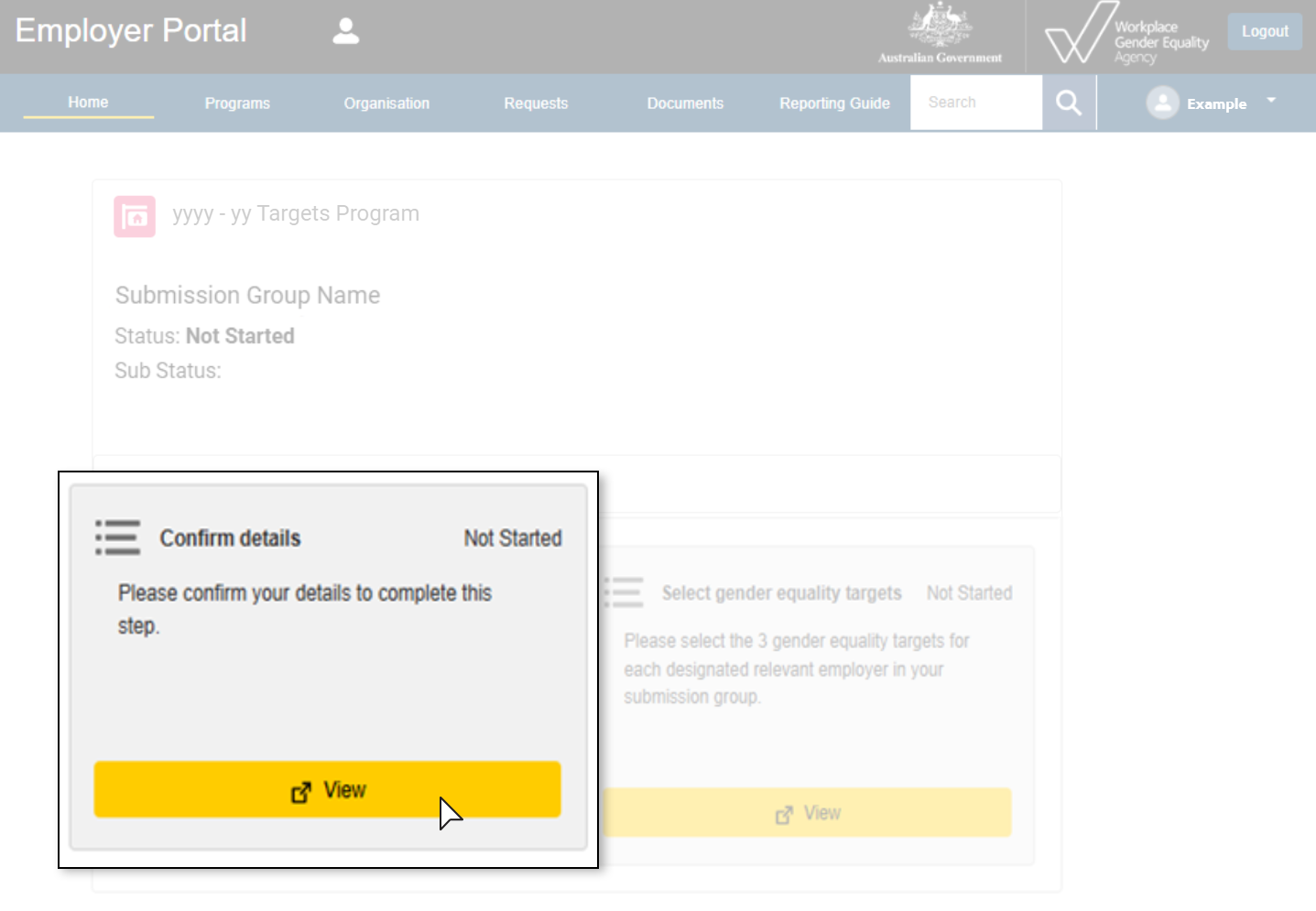
On the Targets Program page, select ‘View’ on the Confirm details tile.
Completing the confirm details section
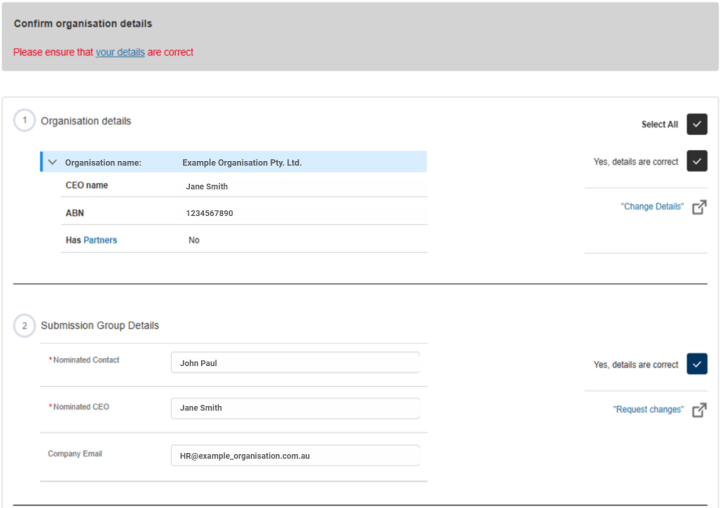
On the Confirm organisation details page, you will:
provide your organisation’s details, including CEO name, ABN, and whether the organisation has partners.
provide your submission group details, including the nominated CEO, nominated contact, and email address details.
confirm that your organisation is a DRE and eligible to select targets.
read and acknowledge the privacy notice.
When you have completed all required fields, select ‘Save & complete’.
This will take you back to the Targets Program page.
Select your gender equality targets
Step 1
On the Targets Program page, select ‘View’ on the Select gender equality targets tile.
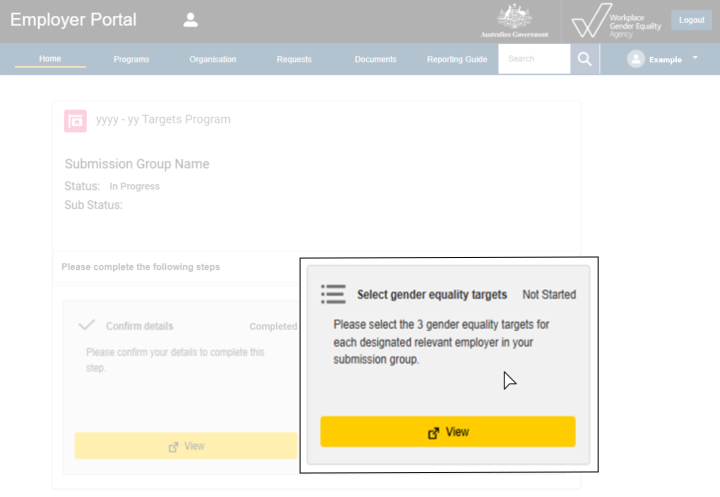
This will take you to the Select gender equality targets page.
Step 2
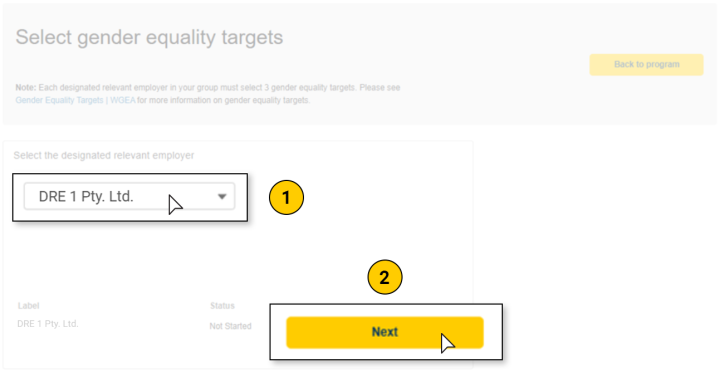
On the Select gender equality targets page, click the arrow on the drop-down box to select the DRE for which you are going to select targets.
Once you have selected the DRE, click ‘Next’ to continue.
Note: If your submission group contains more than one DRE, you will need to select targets for each DRE. Begin by selecting the first DRE.
If your submission group contains multiple DREs, you must repeat this process for each DRE before submitting your targets.
Step 3
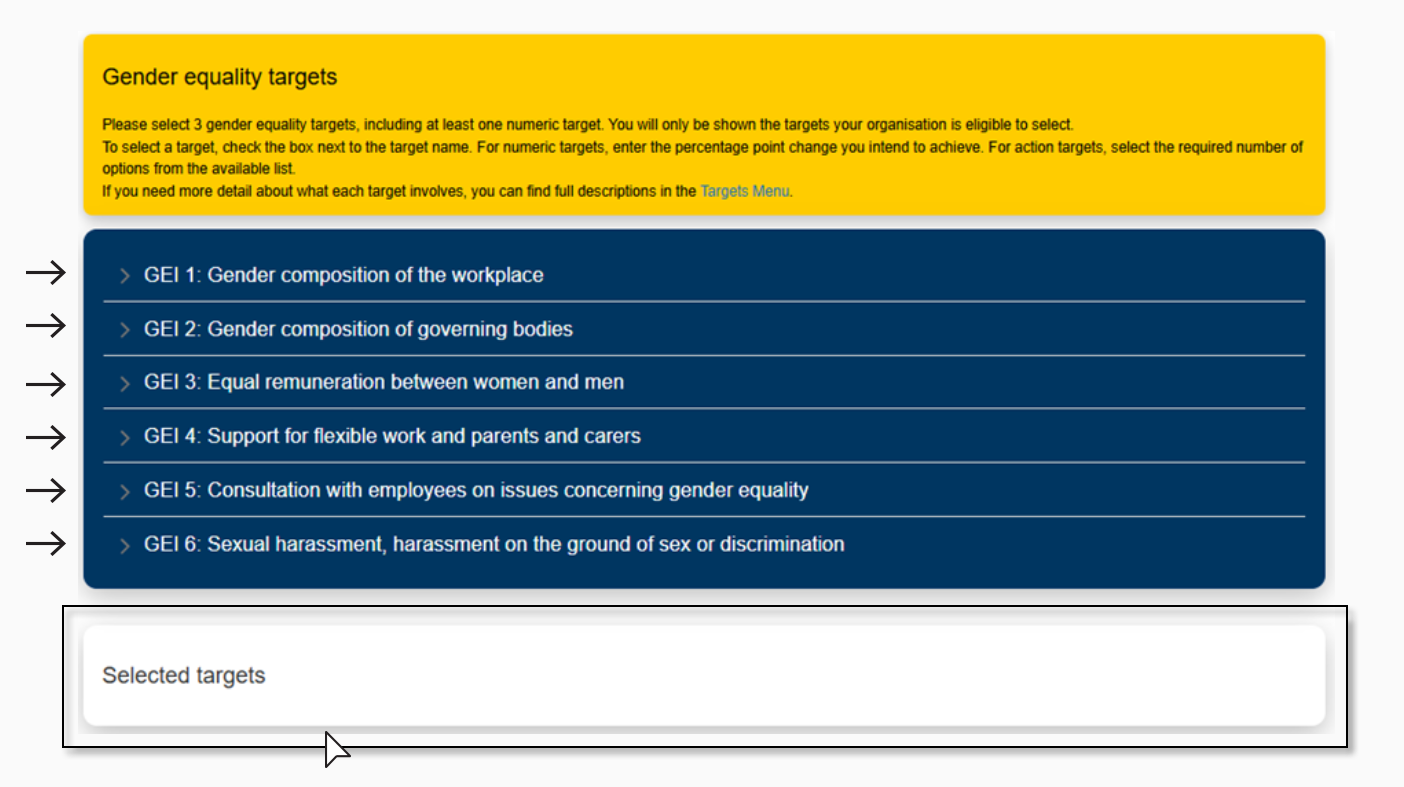
Select your 3 targets, including at least one numeric target.
Once you have selected your organisation, the portal will show a list of the 6 Gender Equality Indicators (GEIs) from which you can select your targets.
Click the GEI or the arrow next to the GEI to see the targets your organisation is eligible to select under that GEI.
Click the checkbox next to the target name to select the target. Selected targets will appear in the summary panel at the bottom of the page and will update in real time as you make changes.
Note: You will only see the targets your organisation is eligible to select. See Baseline data for gender equality targets for more information on the eligibility criteria for each target.
A list of all the targets is set out in the Targets Menu.
Selecting numeric targets
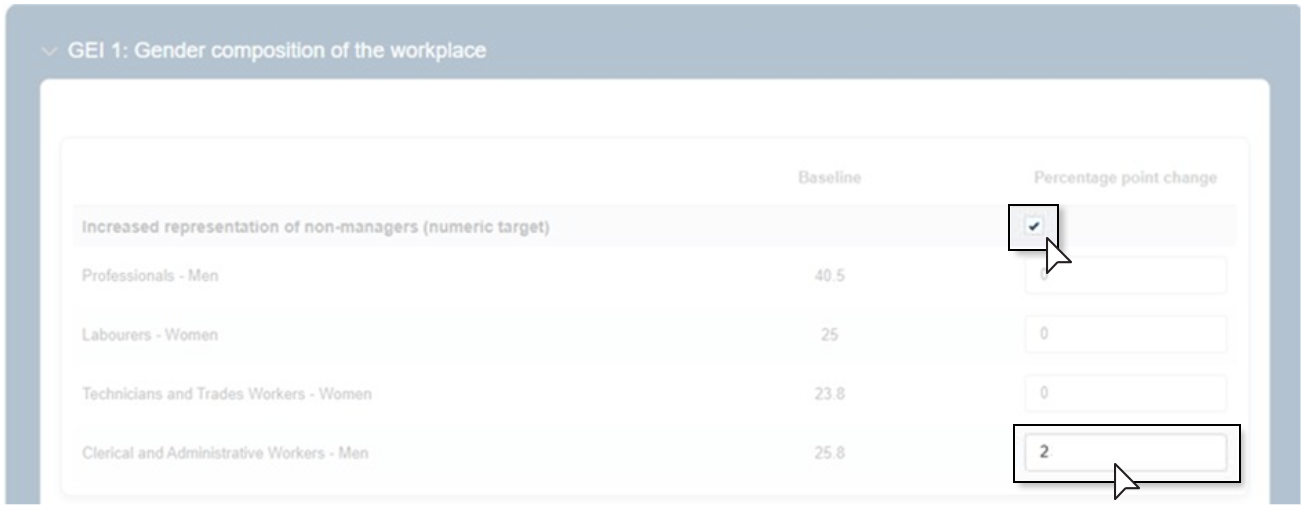
For numeric targets you will need to enter the percentage point change you are committing to achieve in the text box aligned to the category you want to change. Type the number directly into the box under the ‘Percentage point change’ column.
If you enter an incorrect value, you can backspace or delete and replace it with the correct number.
Detail of validations for numeric targets
The WGEA Employer Portal includes several validations to support accurate data entry for gender equality targets:
Maximum allowable increase for GEI 1 and GEI 2
For GEI 1 and GEI 2, you cannot select a percentage point change that would increase the underrepresented gender above 50%.
Gender pay gap targets
If your organisation has a gender pay gap in the relevant category, you can enter a percentage point change up to the value required to bring your gender pay gap in that category to zero. For example, if your average total remuneration gender pay gap is +10, the maximum allowable change is 10. A higher value is not permitted because it would reduce the target below zero.
Valid numeric entries
You cannot enter negative values or enter a target of zero.
One numeric category per target
If you have already entered a percentage point change for one category in a target, you cannot enter another numeric value within that same target for a different category.
Decimal places
For most numeric targets, you must enter a whole number percentage point change.
Gender pay gap targets are the only exception, where one decimal place is permitted.
Selecting action targets
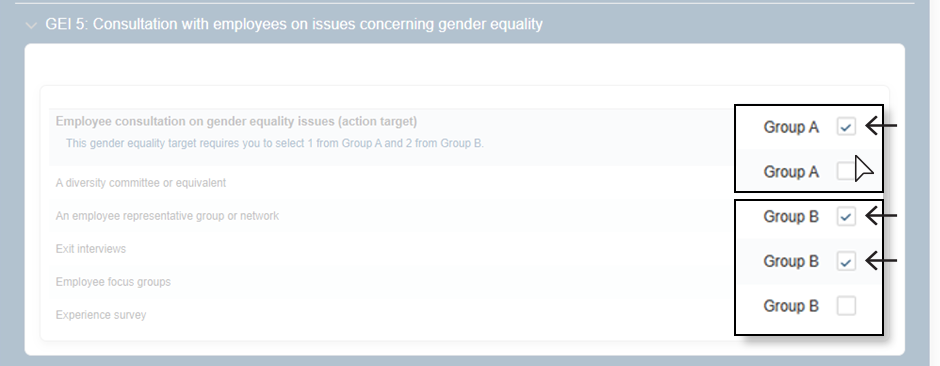
Some action targets require you to select one or more actions/options.
Detail of validations for action targets
The Employer Portal includes validations to support accurate selections:
Mutually exclusive options
You cannot select both the ‘Introduce employer-funded parental leave’ and ‘Improve employer funded parental leave’ targets in the same target cycle. You can only select one or the other.
Required number of options
Action targets require you to select a minimum number of options. Each action target will display how many options you are required to select.
Review your selected targets
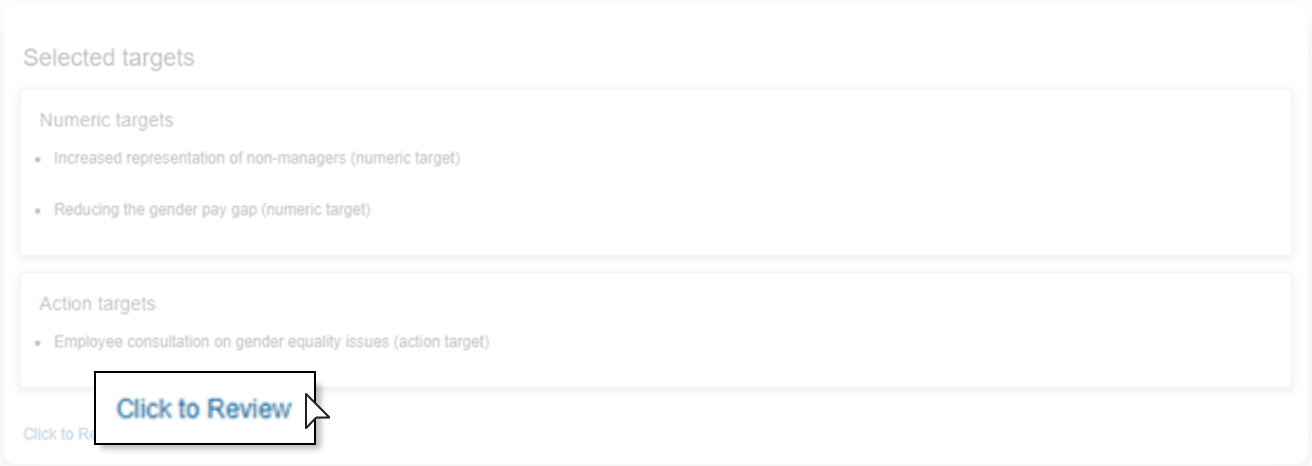
Once you have selected 3 targets, a ‘Click to review’ button will appear.
If any required fields are missing or incomplete when you click this button, a popup will outline what you need to fix before you can continue.
When all selections are complete and valid, click the ‘Click to review’ link following the target selection listing to be taken to the summary page.
Edit your selected targets
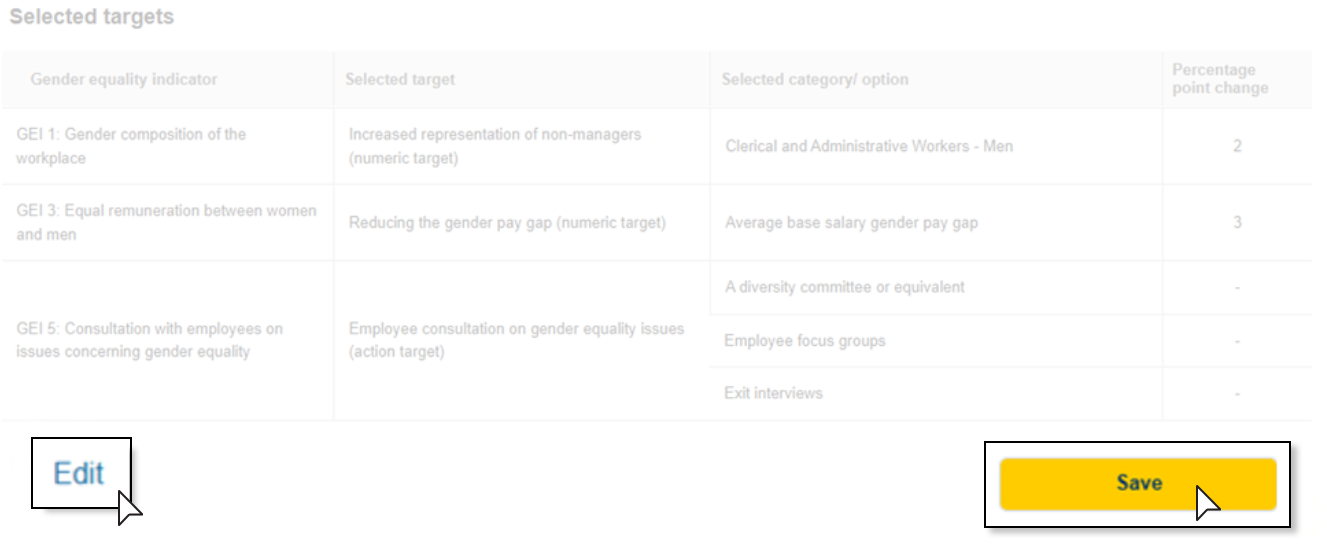
The summary page shows all your selected targets and nominated percentage point changes.
Select the ‘Edit’ link following the summary to:
change any selected targets
adjust numeric values
update selected options within action targets.
Click the ‘Save’ button after the summary to save your selected targets.
Note: Clicking ‘Save’ on this page does not submit your targets.
Submitting your targets
When you are ready to submit your targets, return to the Targets Program page and complete the declarations and consent.
To do this you will need to check the box listed with the text: I confirm that the information provided in the application is complete and correct and the Chief Executive Officer (or equivalent) has approved it being submitted to WGEA in the portal.
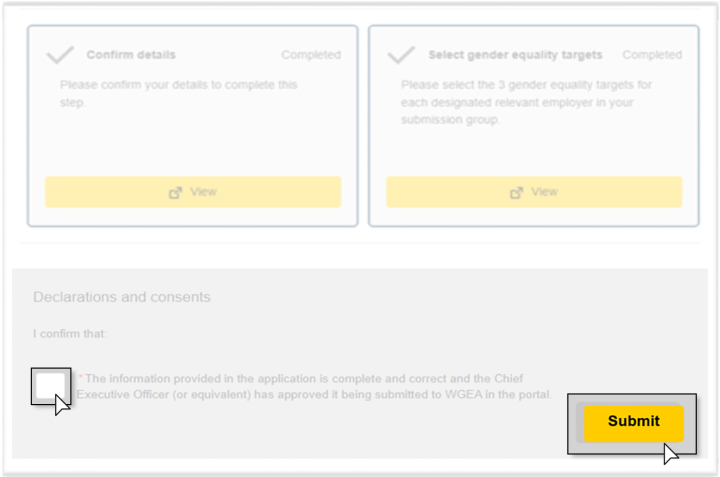
Once the box is checked, click on Submit.
After clicking Submit, you will see a reminder that targets cannot be edited or changed once submitted.
After submission, previously editable fields will appear greyed out.
Once the targets are submitted, you can lodge your Gender Equality Report.
See Reporting steps for guidance on how to lodge your Gender Equality Report.
After all DREs in the corporate group have selected their targets, the corporate group should coordinate which reporting contact will submit the targets, as all targets for the corporate group are submitted together in the Portal. This requires coordination across the entities to ensure all DREs have made their selections.
Targets must be submitted before the Gender Equality Reports can be lodged. Entities cannot lodge their Gender Equality Reports until this step is complete.
How to view your selected targets
Once your targets have been submitted, they can no longer be viewed or edited in the Employer Portal.
To view your selected targets, generate and download your Executive Summary after completing or submitting your Gender Equality Report. The Executive Summary includes a record of your selected targets.
If you generated the Executive Summary before your targets were submitted, you will need to generate it again to ensure your selected targets are included. The newly generated version will automatically replace the previous version.
Need more support?
For support with:
- Employer Portal, visit Employer Portal access.
- targets, contact WGEA at targets@wgea.gov.au or visit Gender Equality Targets: Frequently Asked Questions and Gender Equality Targets overview.